Troubleshooting
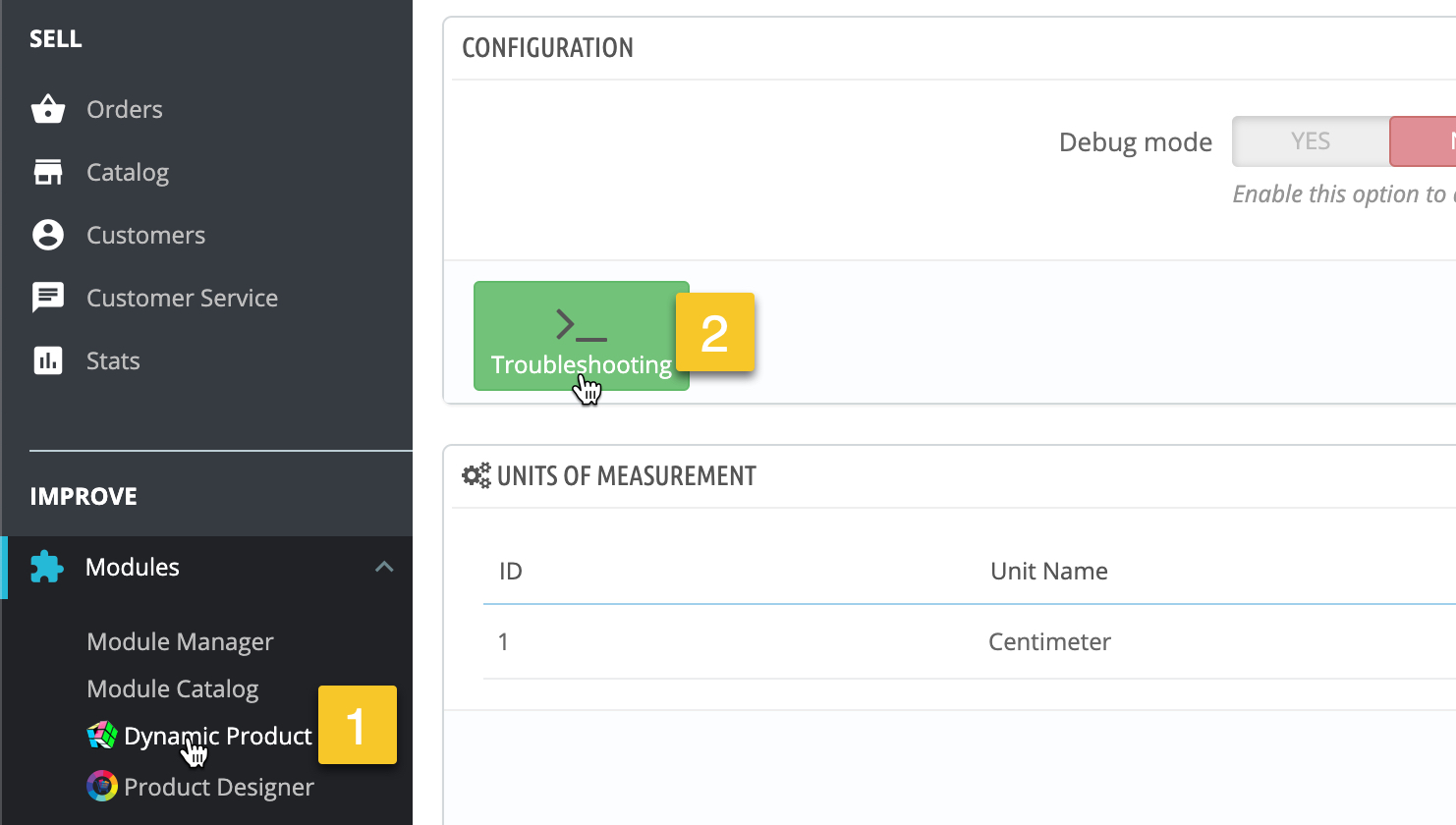
The plugin has a troubleshooting page to fix common problems. To access this page, open the main configuration page of the plugin then click the Troubleshooting button
The plugin is not displayed
Sometimes, the plugin gets removed from a necessary hook such as the hook which displays the fields in the product page. This usually occurs after installing or activating a new theme.
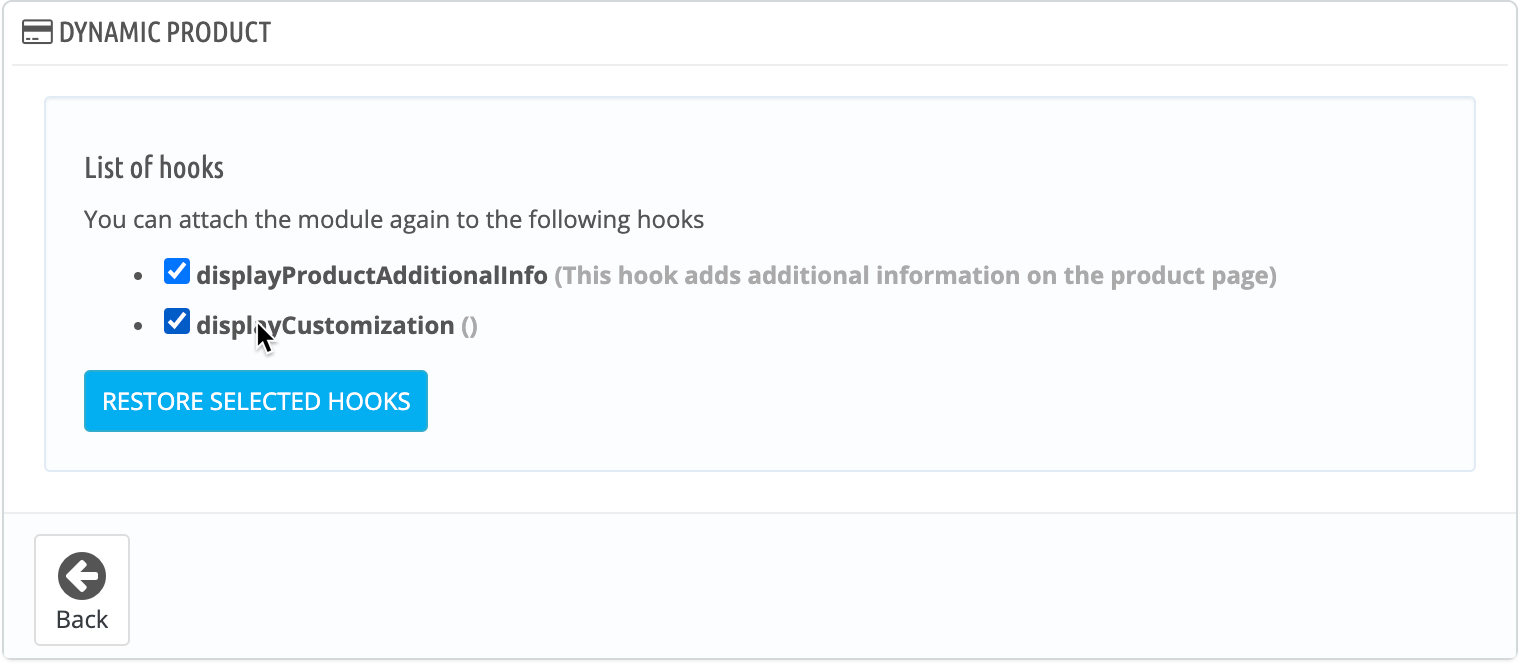
To fix this, you can restore the plugin hooks like this:
The plugin will then restore the hooks and show this confirmation
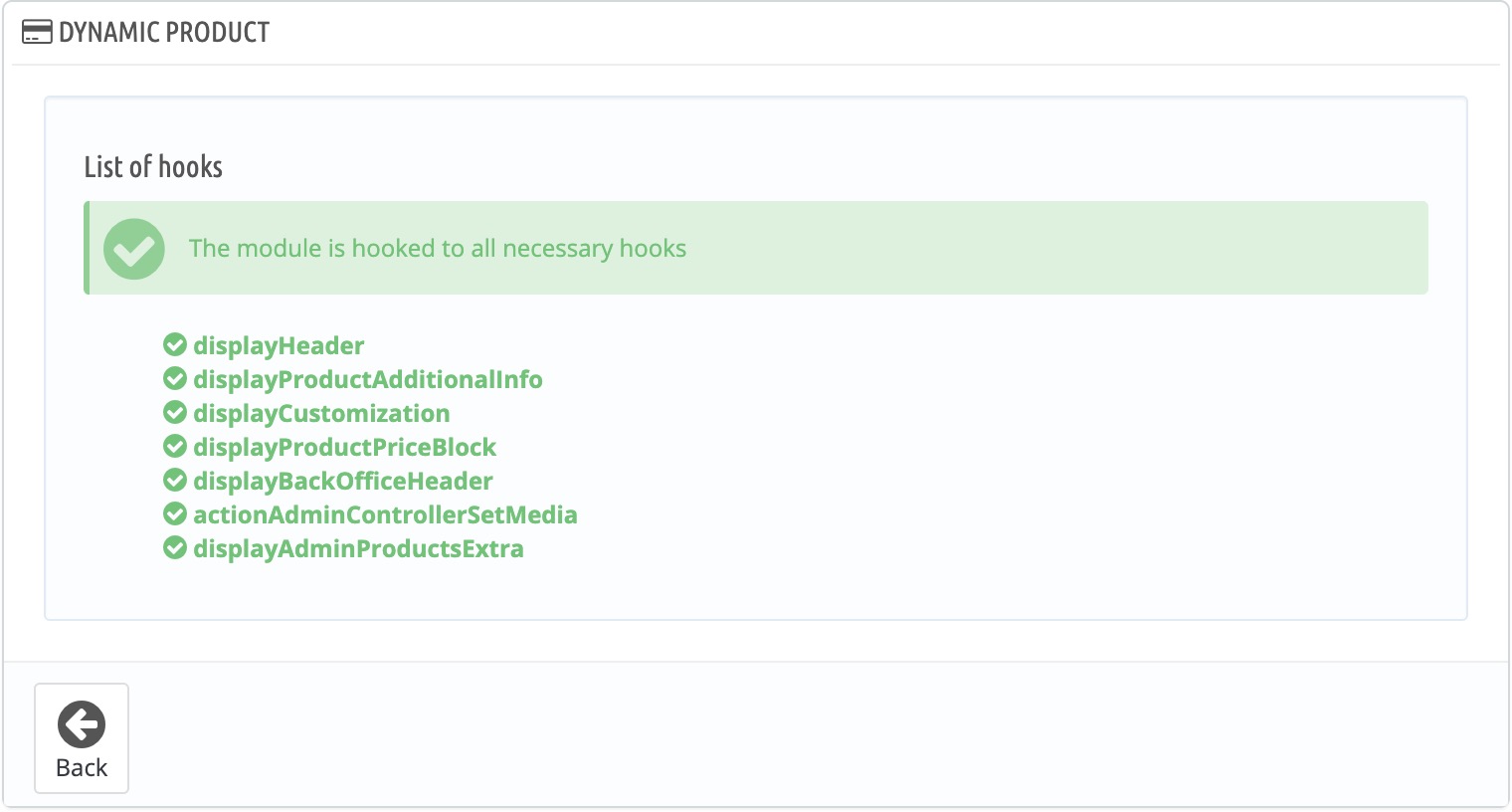
You can also verify the plugin hooks are registered by checking the WooCommerce integration settings.
The customization is not formatted correctly
By default, WooCommerce may not display a customization that contains HTML content, so instead of the customization summary, the HTML code will be displayed.
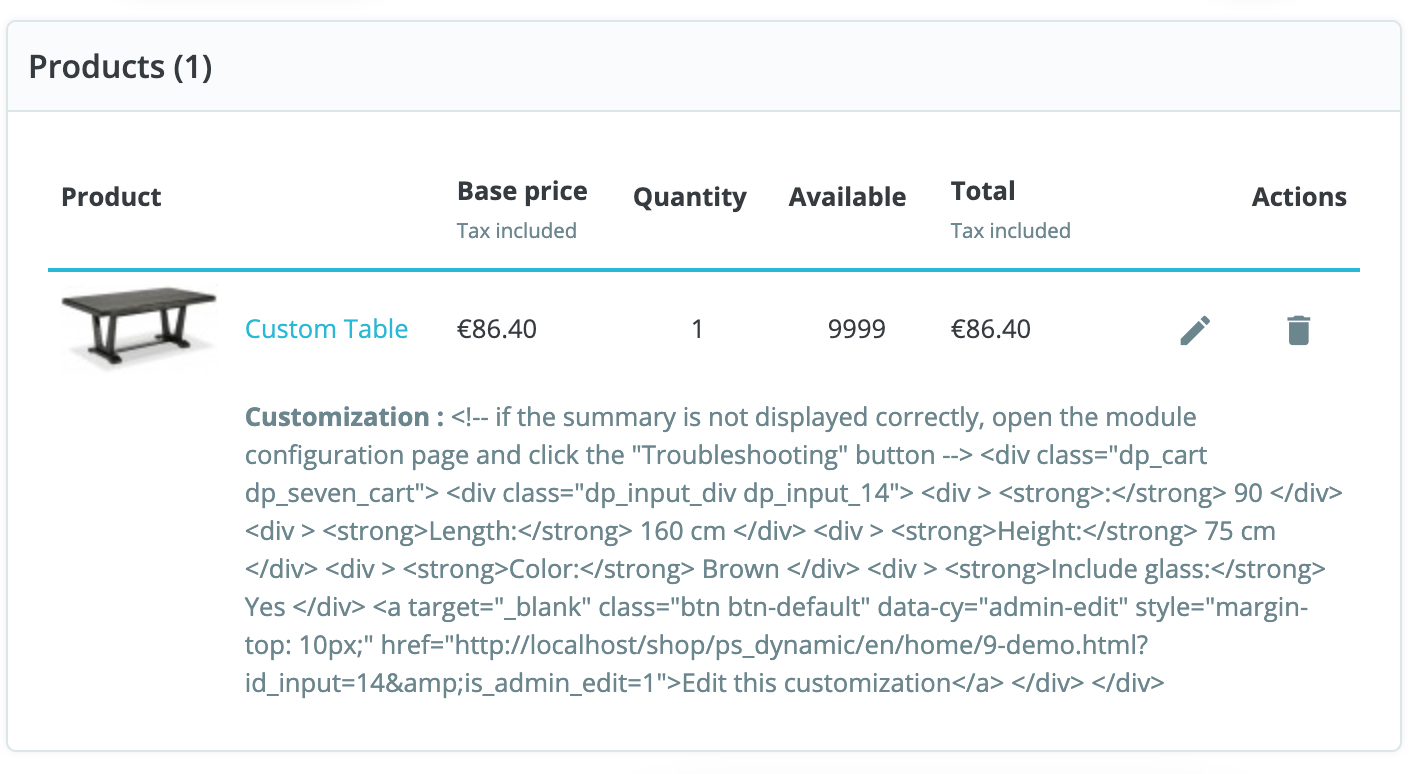
To fix this, apply the template fixes in the troubleshooting page
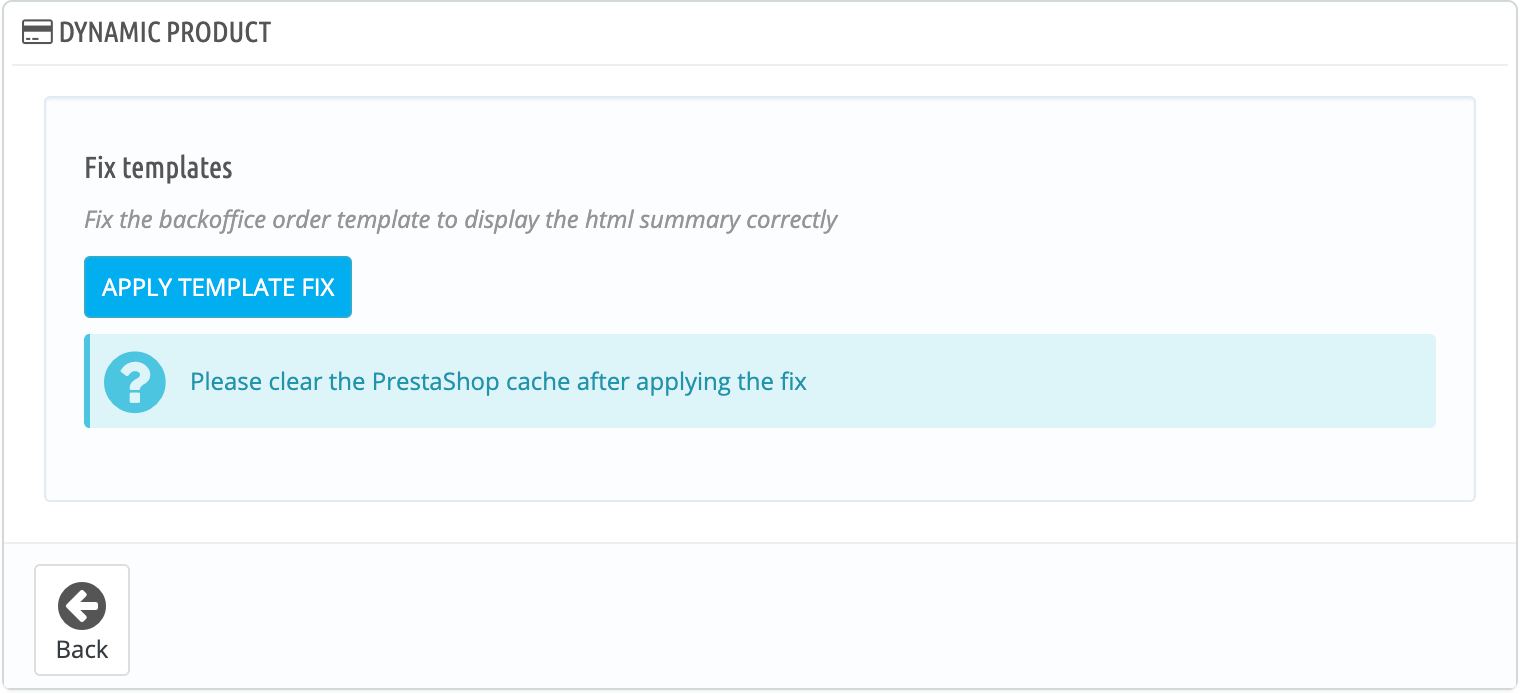
The plugin will display this confirmation if the fix was applied successfully
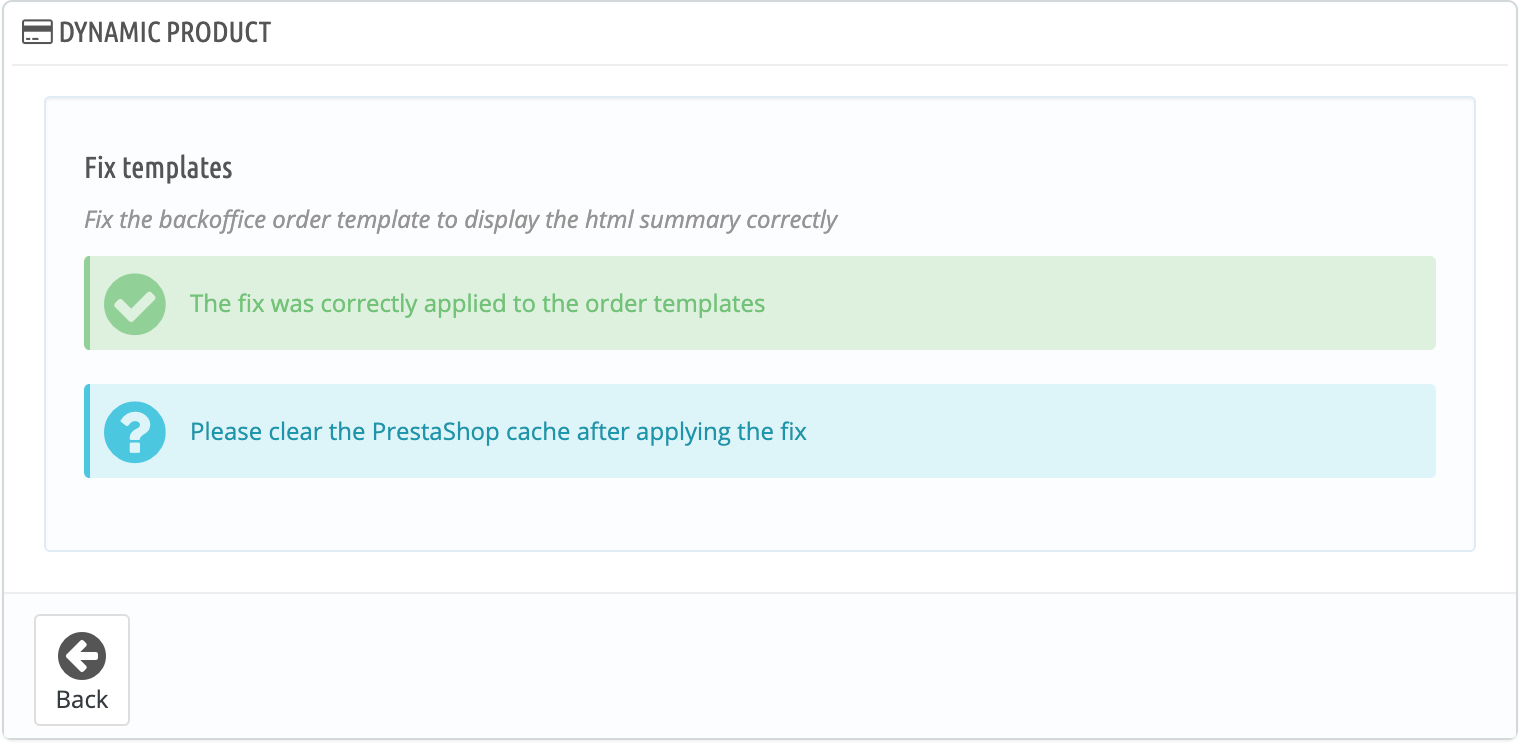
Clear the WordPress cache after applying the template fix
The customization will be displayed like this
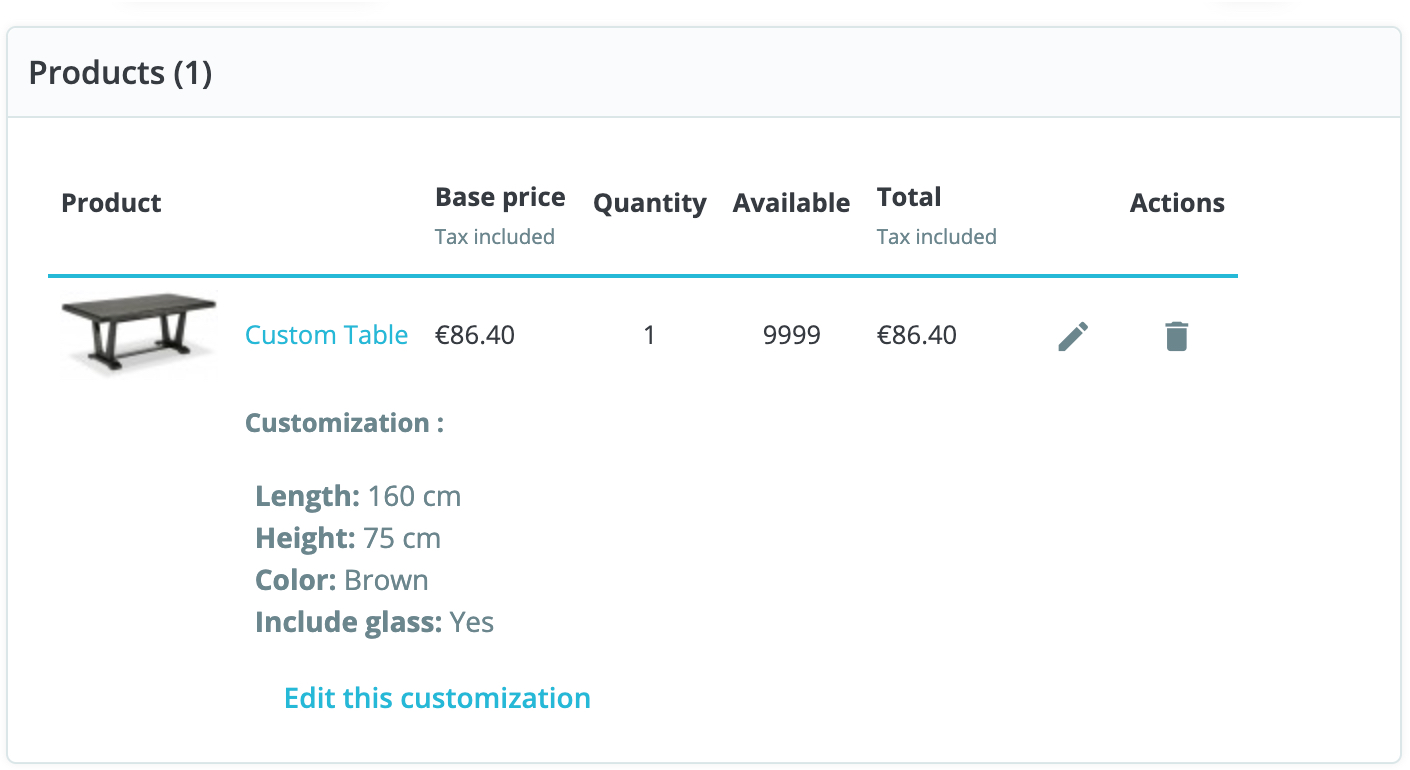
If this doesn't work, it means that either that the plugin couldn't fix the files because of a permission problem on your server or that WordPress could not clear the cache properly due to insufficient permissions.
In that case, you need to perform the edits manually by following this guide
After applying the fix, make sure to also delete or rename the folder /var/cache manually if needed.
Upgrade checker
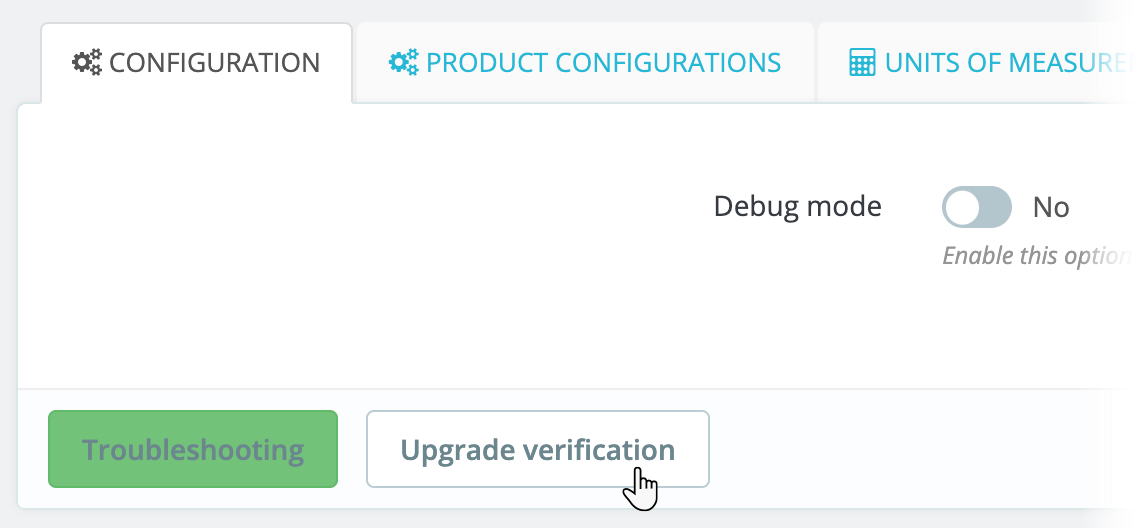
You can check the plugin installation using the upgrade checker
To access it, click this button which you can find in the plugin configuration page
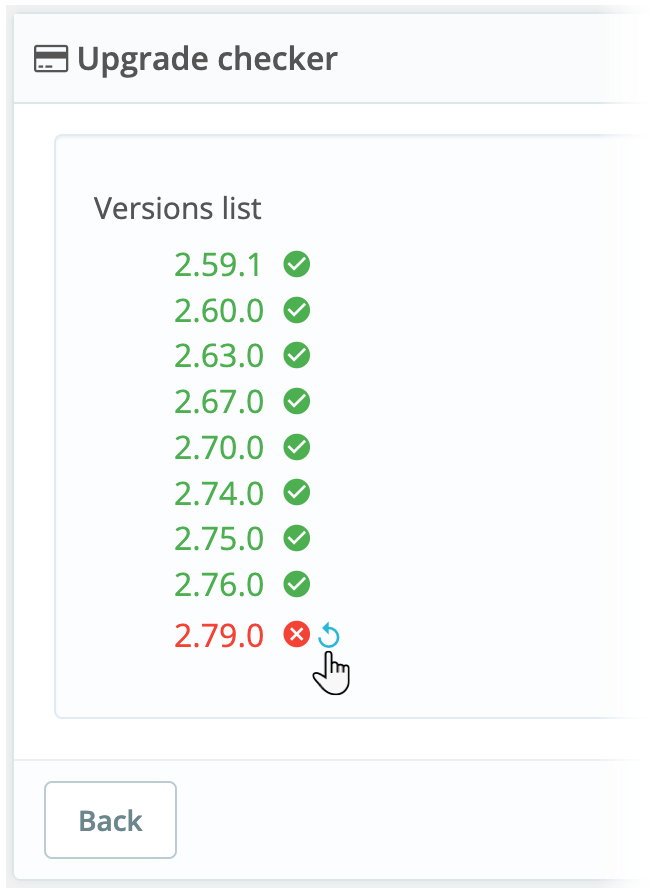
The versions will be displayed like this
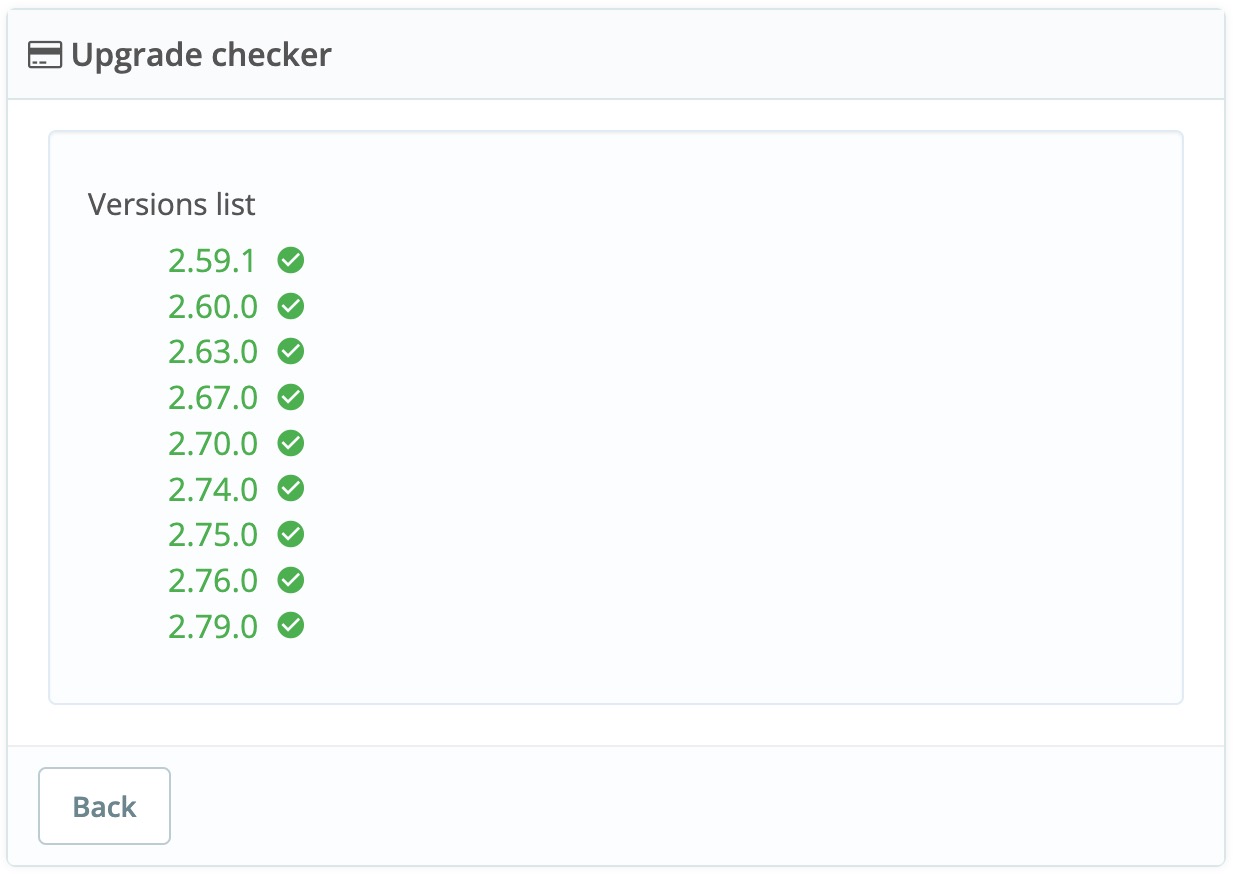
If an upgrade has previously failed, you can retry it like this